

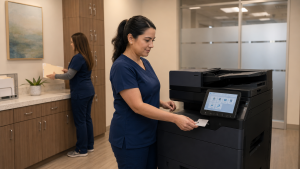
A clinic’s reception printer and its back-office copier do not always need to be the same machine. Reception staff may need a small amount of output quickly, while administrators handle longer packets, copies and scanning away from the public counter. Equipment planning improves when these jobs are separated before the models are selected.
At STAT Business Systems, we help Broward County offices compare practical Kyocera configurations and local support. For a medical, dental or therapy practice, the first step is understanding who handles each document and where it should be collected.
For a multi-provider practice, identify which person approves changes to the document workflow. Reception, administration and IT may each see a different part of the task. A brief shared requirement sheet keeps the equipment decision connected to the complete process and gives the practice a useful record for future staff training.
Map the two work areas
At reception, list the documents produced during patient check-in and check-out. Record their size, whether they need color and how urgently staff need the output. Note whether employees copy or scan paper at the same location.
In the administrative area, list longer jobs such as internal reports, staff materials, forms and scanned records. Describe batch size and the way people retrieve the results. Keep confidential information out of the purchasing examples you share.
This map often reveals that the busiest counter needs fast access to a modest printer, while larger document handling belongs at a shared multifunction system. It can also show that one well-placed machine is sufficient. The point is to test the layout instead of assuming two devices are necessary.
Keep collection points out of the public traffic flow
Equipment placement affects who can see or collect paper. A printer that ejects pages toward a waiting area may be convenient for loading but awkward for confidential work. Review the output direction and staff-only access before using that position.
If the practice needs authentication or held-print release, confirm the exact feature, configuration and staff process. Those capabilities can support the practice’s policies, but equipment features alone do not make a workflow compliant.
Include the person responsible for privacy and IT in the review. They can identify which jobs should be sent to which device and what controls are appropriate for the office.
Choose the device role before the model
A print-only ECOSYS model can be considered where the requirement is mainly receiving output from an office computer. A compact multifunction option adds local copying and scanning. A shared TASKalfa system may make sense for larger originals, more paper sources or departmental finishing requirements.
Use our office printer listings and Kyocera equipment catalog to compare the available roles. Do not assume the largest machine should sit at reception just because that desk is busy.
Check the complete installed footprint, including doors, feeder access, optional trays and service clearance. Countertops and furniture need to suit the equipment being proposed.
Agree on where each job goes
Once equipment roles are clear, define simple defaults. Reception output should go to the intended staff collection point. Larger administrative runs should avoid interrupting the front desk when another suitable machine is available.
Test from the computers people actually use. Confirm queue names, supported drivers and the correct settings for common documents. If employees work at several stations, check that they can identify the appropriate destination without trial and error.
Scanning needs the same clarity. Confirm the authorized destination, file naming convention and person who checks the result. A shared scan button should not become an unexplained route that only one employee understands.
Plan for a normal service interruption
Ask how work would continue if either device became unavailable. A backup route may be as simple as sending an ordinary print job to the shared copier, provided the output and access controls remain appropriate.
Document the service contact and the information to provide: model, location, displayed message and a sanitized example of the issue. Confirm the support scope being offered rather than assuming every network or application problem falls under equipment service.
We can discuss copier leasing and service arrangements around the practice’s actual workload. Current model availability, accessories and support terms should be confirmed in the proposal.
Build the quote around the floor plan
Send us a simple layout, typical document tasks and the needs of both reception and administration. Include staff-only collection areas, paper sizes and any required scanning or release features.
Request a clinic equipment quote with the practice’s Broward location and intended installation timing. We can help select a setup that serves the front desk without making the entire office’s document work depend on one crowded counter.